Jmeter Proxy | Testing of HTTP Proxy Server using Jmeter - jmeter - jmeter tutorial
How to test HTTP Proxy Server using Jmeter?
- Record Testing help tester to record & run their activity against test target.It is a type of automated testing but for multiple users.
- This chapter guides you how to use Proxy Server to record your test.
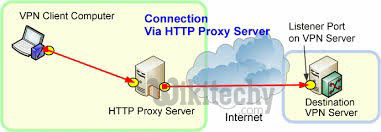
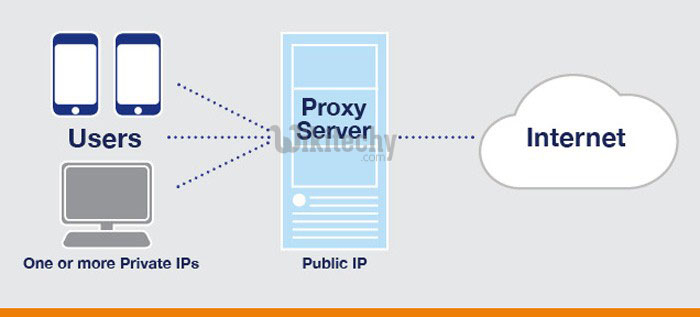
- The Proxy Server allows JMeter to watch and record user activity while they are browsing web application with normal browser.
learn apache jmeter tutorials - proxy server testing Example
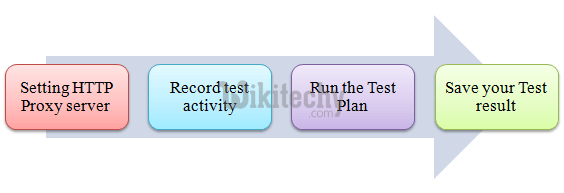
Here is the roadmap of this practical example
Step 1) Setting HTTP Proxy server
The Step-by-step guide to setup proxy are:
- Start JMeter
- Select Test Plan on the tree
- Add Thread Group
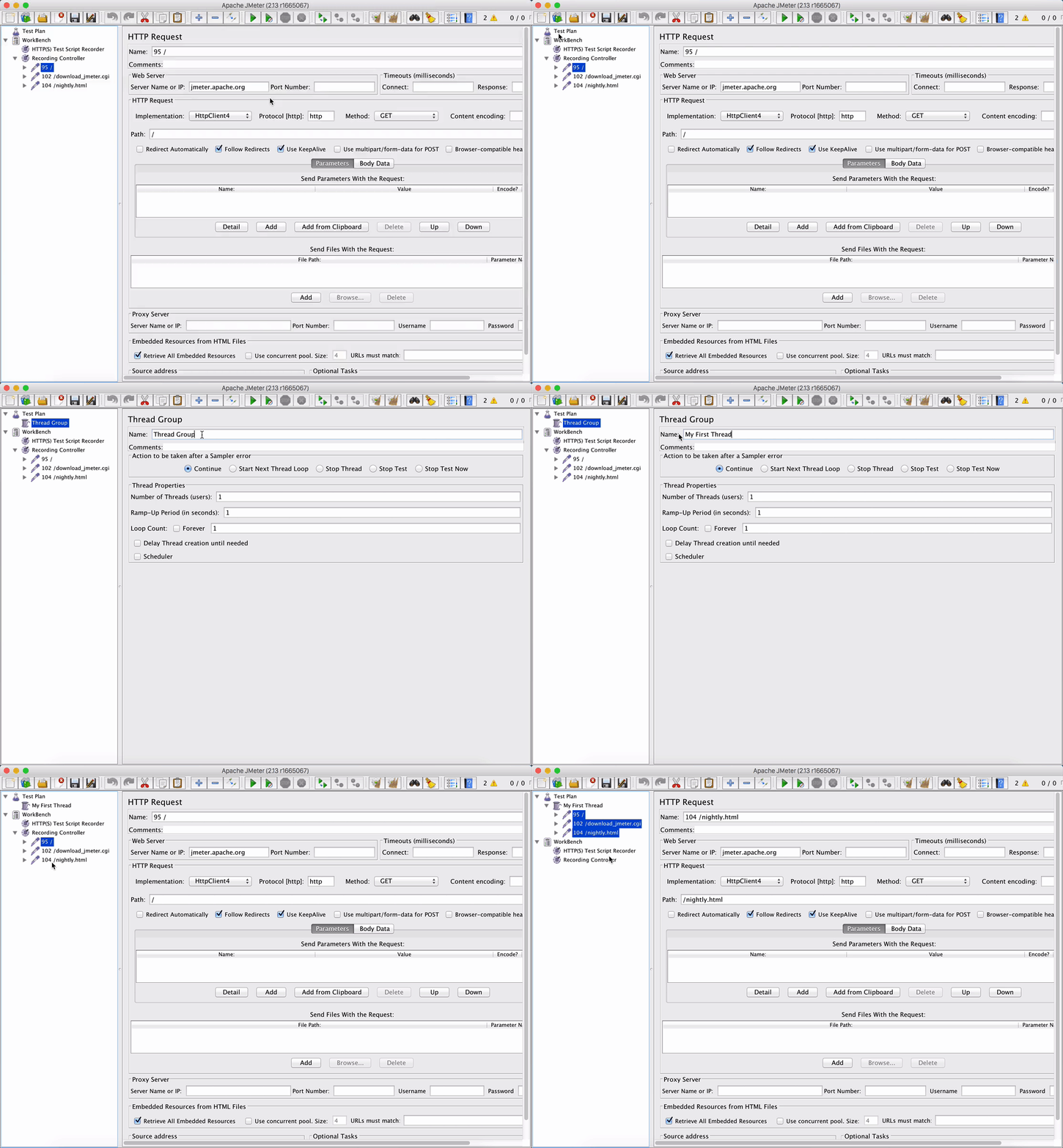
- Right click on the Test Plan and add a new thread group: Add >Threads (Users) > Thread Group
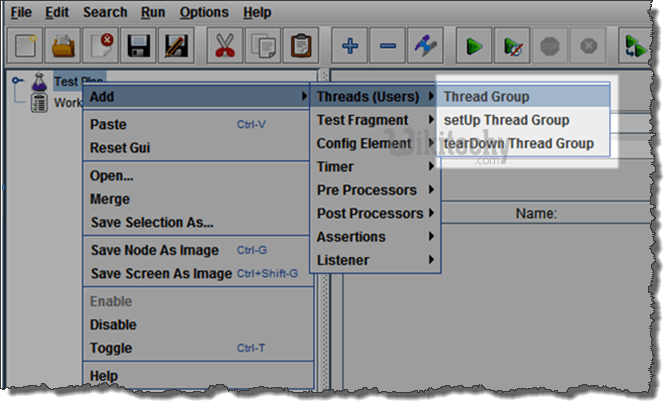
- Add HTTP Request
- Select the Thread Group; right click Add > Config Element > HTTP Request Defaults
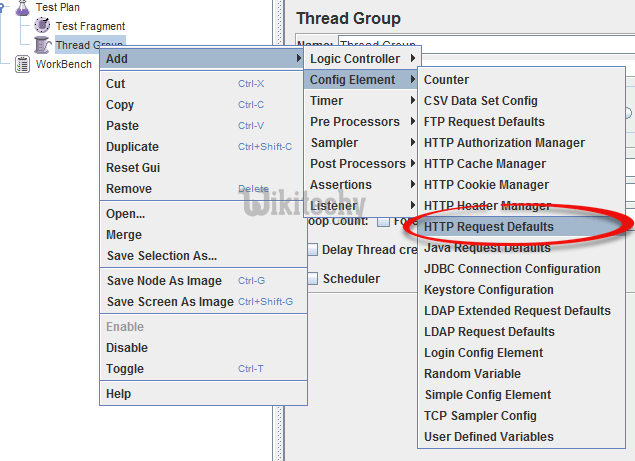
- In new HTTP Request Defaults element: In Server name or IP, enter "google.com". You should keep the others fields blank
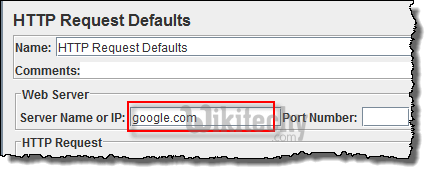
- Add Recording Controller
- Right click on the "Thread Group" and add a recording controller:
- Add > Logic Controller >Recording Controller
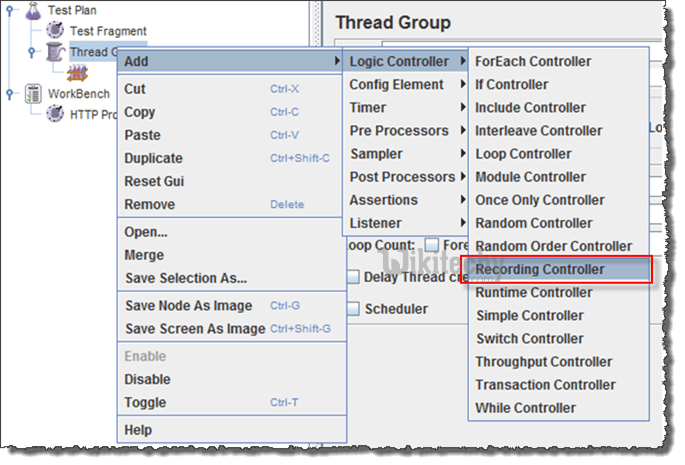
Add Proxy Server to WorkBench
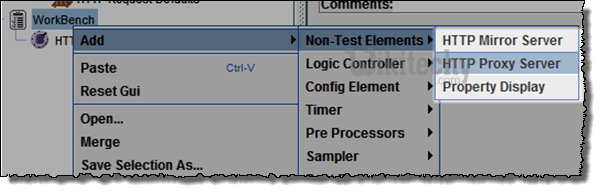
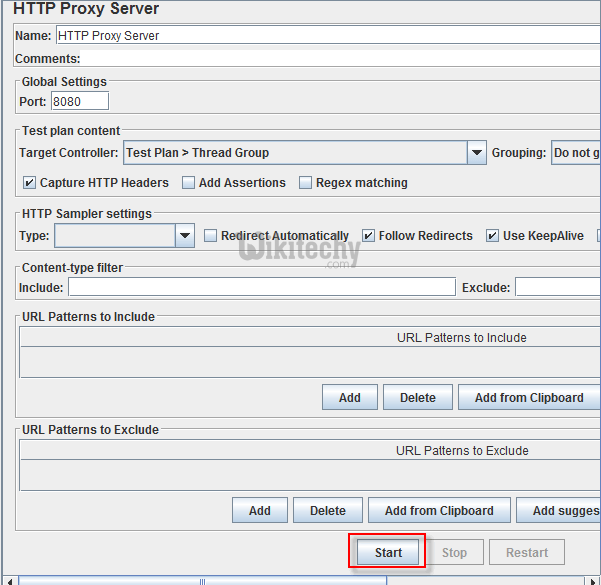
- Right click on the Workbench and add the http proxy: Add > Non-Test Elements > HTTP Proxy Server
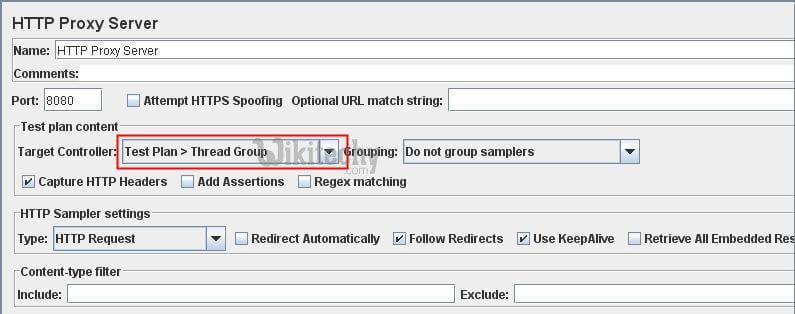
- Set Target Controller where your recorded scripts will be added
- Start Proxy Server
- Return to HTTP Proxy Server, and click the Start button at the bottom. Now your JMeter proxy server start
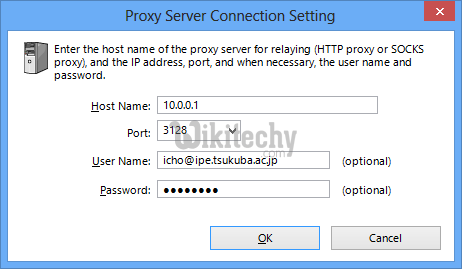
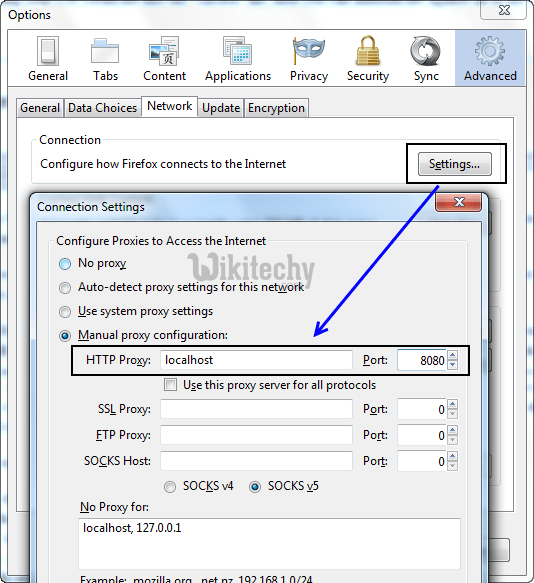
- Start your Browser (I used Firefox), choose Tool > Option > Advanced > Network > Setting > Enter HTTP proxy as figure below
Step 2) Record your activity
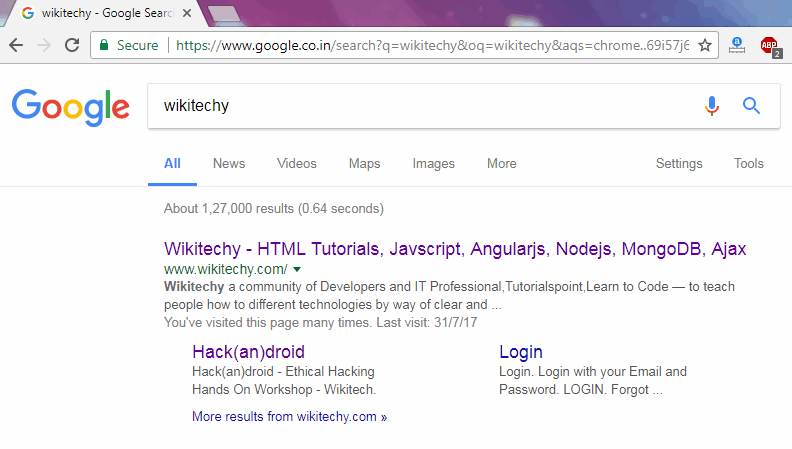
- Now Launch www.google.com in your web browser (JMeter still open)
- Do activities search the keyword "wikitechy".
- Back to JMeter, in HTTP Proxy Server, click Stop when finished
- After finishing recording, you will see JMeter automatically created a new HTTP request as figure below
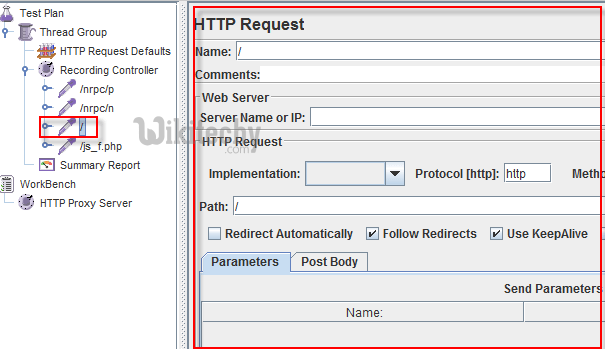
- JMeter has already recorded a user request to Home Page of Google website. http://www.google.com
- The other HTTP requests display in above figure, you should remove them. Because, sometime JMeter also records some advertising links while you are searching keyword on Google. We should ignore them in our Test Plan
Click File > Save your Test Plan as
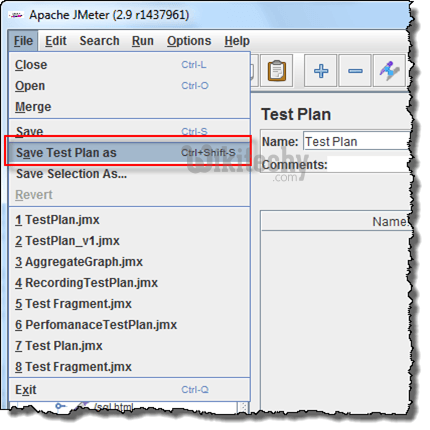
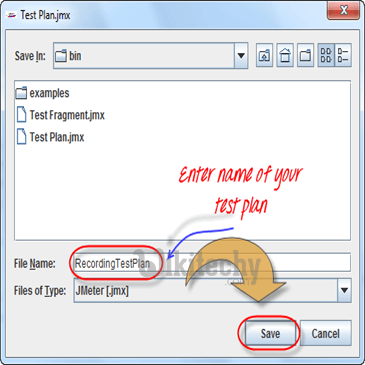
- A Dialog box display ? enter a name of your test plan at File Name field ? Click Save
Now your Test Plan is saved under name RecordingTestPlan.jmx
Step 3) Run your Test Plan
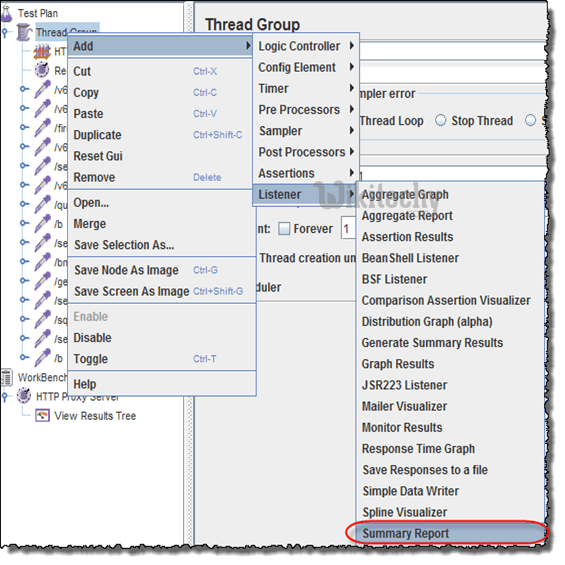
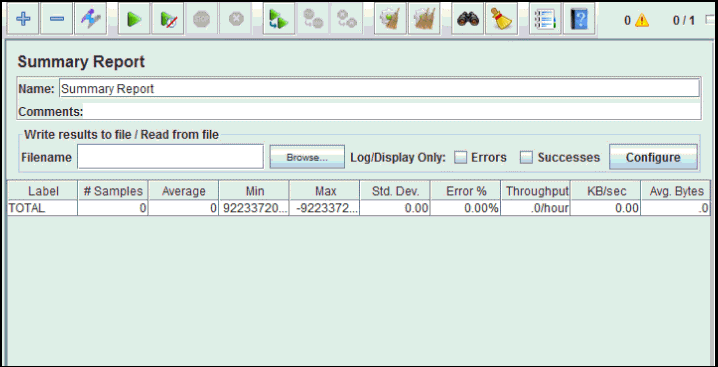
- Select Thread Group > Add > Listener> Summary Report
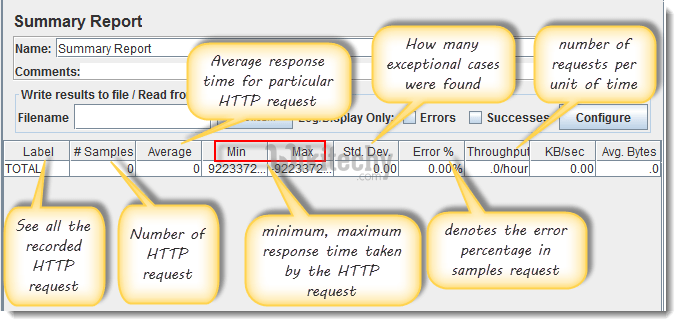
- The Summary Report will show some basic statics
- Select Thread Group, enter information as figure below
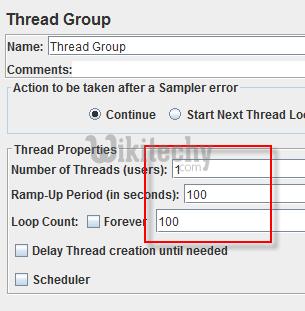
You can refer the article 5 JMeter Performance Testing.doc to know the detail about Thread Group configuring
- Before you start the test, select "Summary Report". When you ready to run test, select Run ? Start (Ctrl+R). JMeter will playback your activity in 100 time
- As the test runs, the statistics will change until the test is done.
Step 4) Save your test result
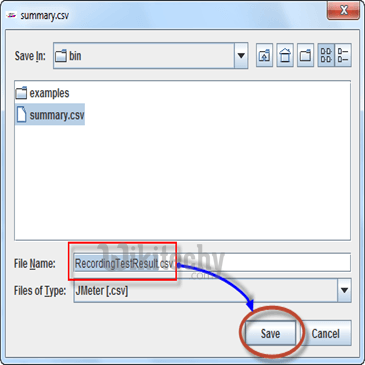
- Click Save Table Data to save test result to file
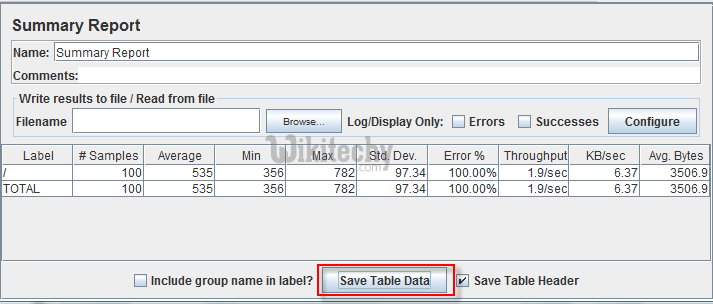
- Enter the name of test result and click Save. Test Result in JMeter is saved in *.csv format as default