jmeter beanshell preprocessor | How to use Processor in jmeter - jmeter - jmeter tutorial
What is Processor in jmeter?
- Processor is used to modify the Samplers in their scope.
- There are 2 Types of processors:
- Pre-processor
- Post-processor
Pre-processor:
- Pre-processor executes some action before making Sampler Request.
- Consider a simple example: let's say you wanted JMeter to "spider" through website under test, parse link(check all links on the page) and return the HTML.
- You would add some action such as "HTML link parser" to your controller before creating an HTTP request.

Post-processor:
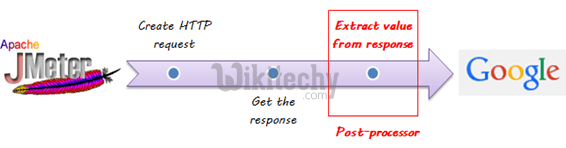
- Consider a simple example: JMeter send HTTP request to the web server under test (etc www.google.com ) and get the response. You want JMeter to stop the testif the server response is error.
You can use the post-processor to do above task as following:
Processor-Hands on
- This tutorial will show you step-by-step instructions how to use Post-processor in JMeter. Let start with simple test script
- JMeter sends HTTP request to the web server under test www.google.com
- JMeter gets response from the Google server.
- If server response is error, JMeter will stop the test.
- If server response OK (no error), JMeter will continue the test.
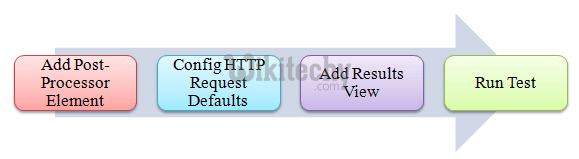
Here is the roadmap of this example:
Pre-condition:
Step 1) Add Thread Group
- Right click on the Test Plan and add a new thread group: Add -> Threads (Users) -> Thread Group
- But in Thread Group control panel, enter Thread Properties as following:
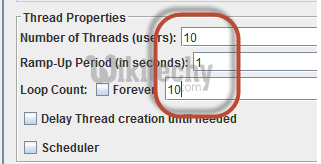
- This setting lets JMeter create 10 user request to www.google.com 10 times.
Step 2) Add JMeter elements
- Add HTTP request default
- Add HTTP request
- We still make JMeter send request www.google.com to Google server.
Step 3) Add Post-Processor Element
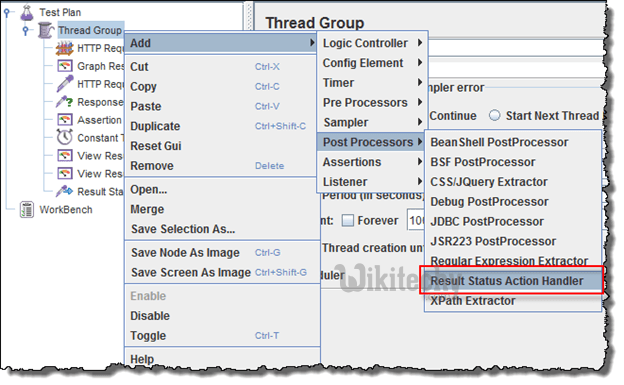
- Right Click Thread Group -> Add -> Post Processor -> Result Status Action Handler
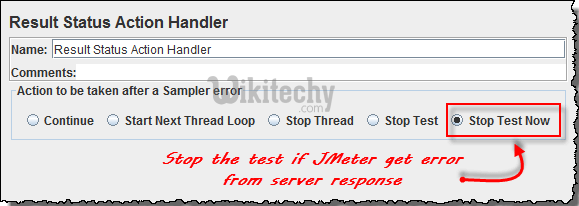
- Result Status Action Handler allows the user to stop the thread or the whole test if the user request failed.
- In Result Status Action Handle Pane, choose Stop Test Now. This selection will stop the test if JMeter get the error from server response.
Step 4) Config the HTTP Request
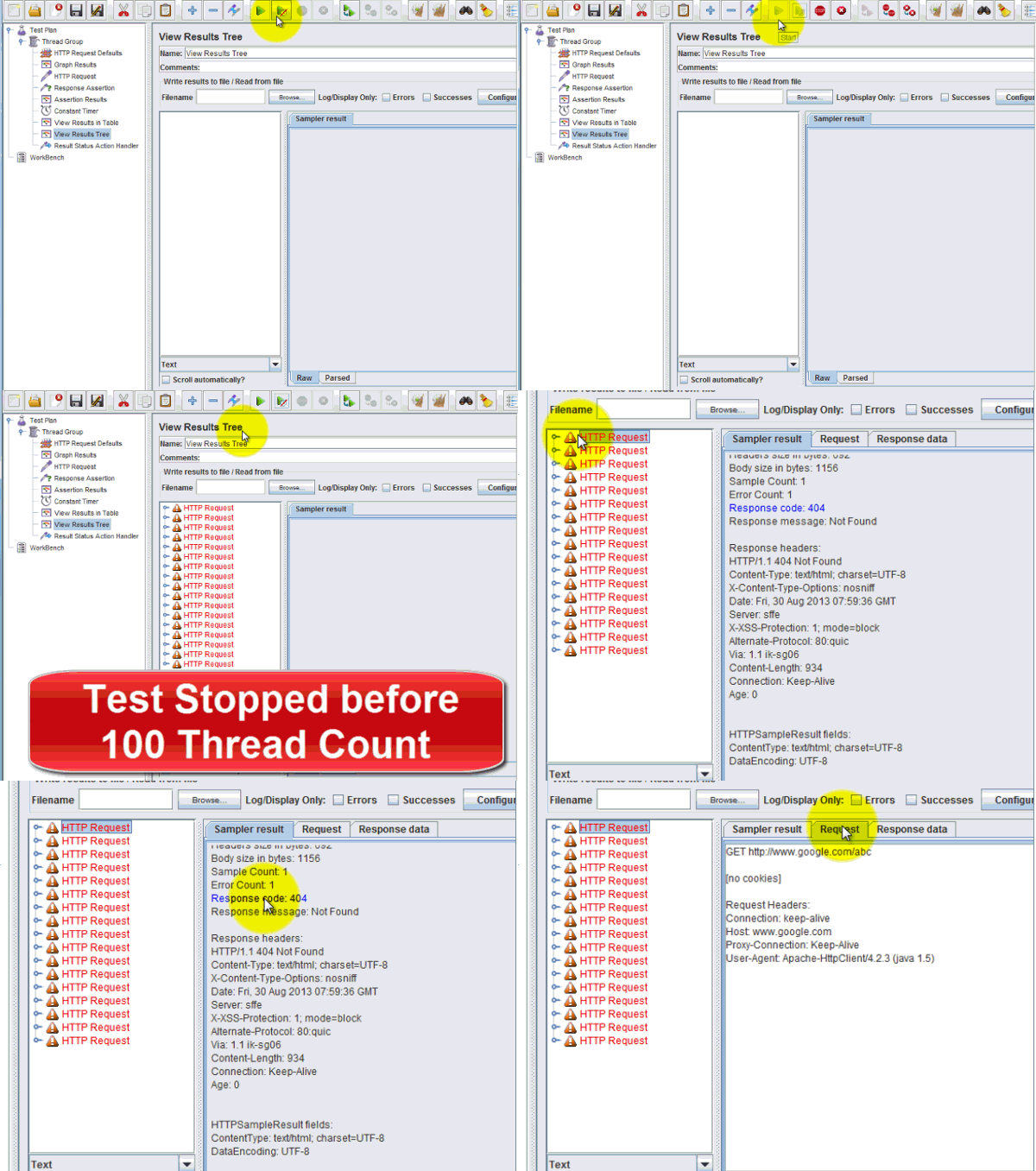
- Open the HTTP Request Panel. Enter "abc" to the Path field.
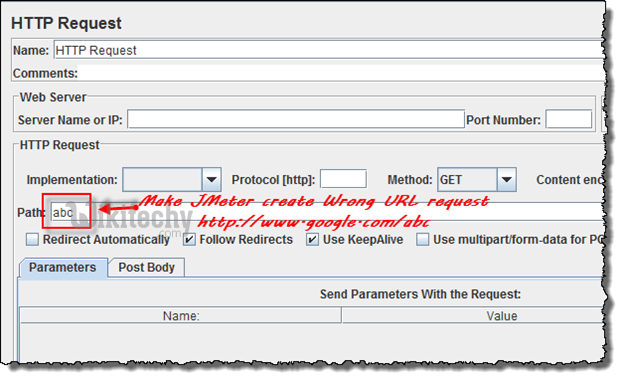
- When you enter "abc" to the path, JMeter will create URL request to Google server: www.google.com/abc. This URL doesn't exist on Google server. It is wrong URL request so Google server will return error.
Step 5) Add View Result Tree
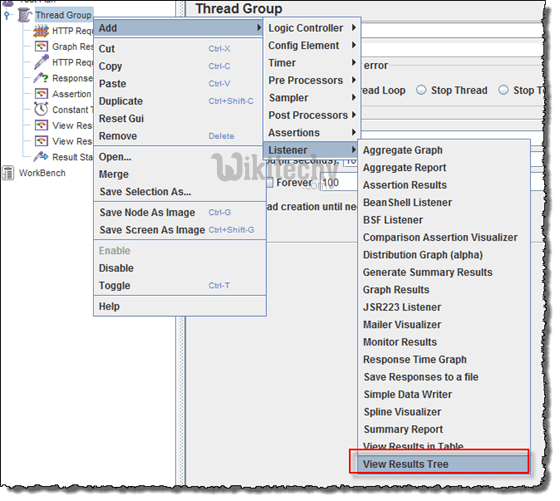
- Right Click Thread Group -> Add -> Listener -> View Result Tree
Step 6) Run Test
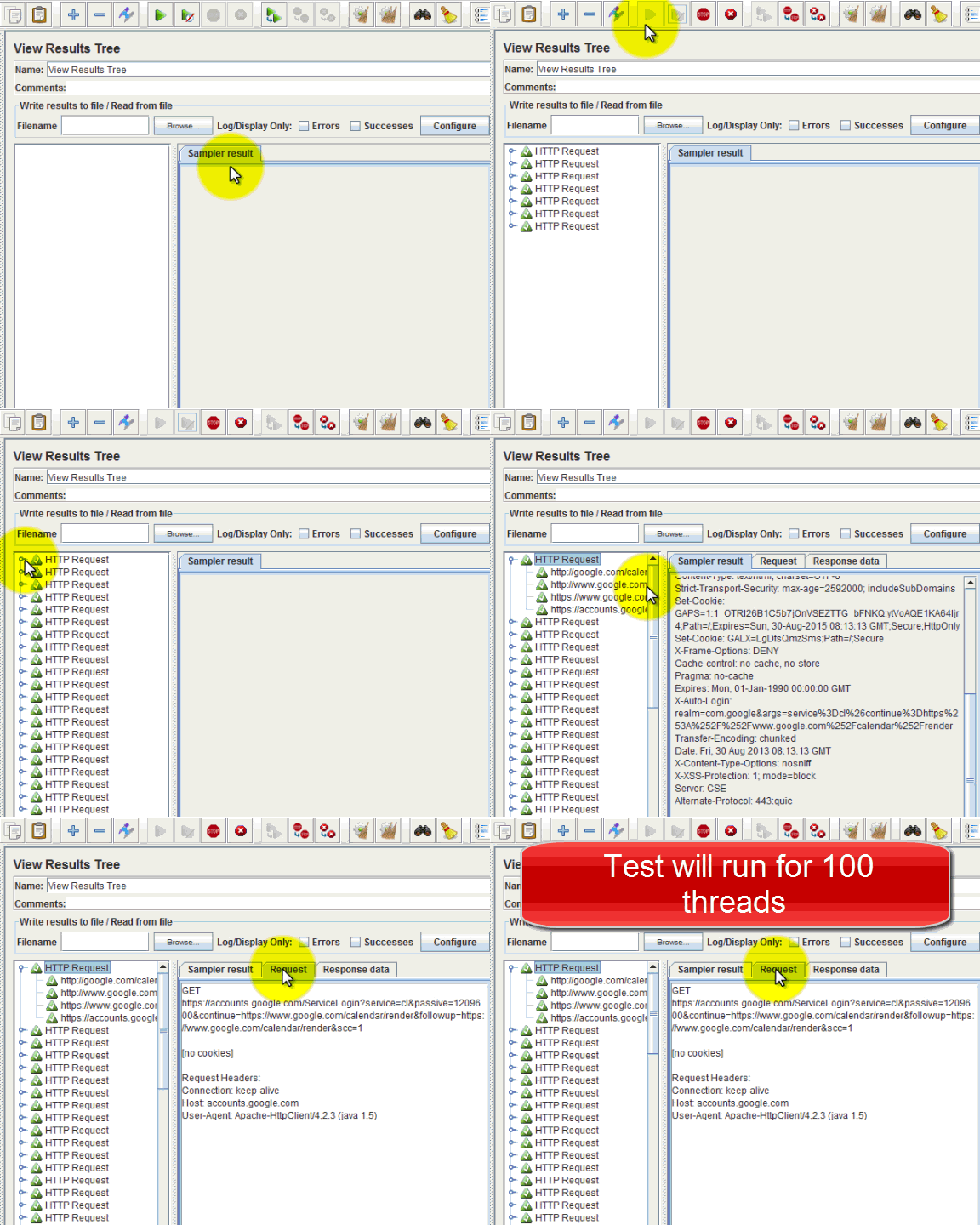
- Select View Result Tree, press Run button on Menu bar. You will see the error response from Google server and the test will stop with out completing 100 threads.
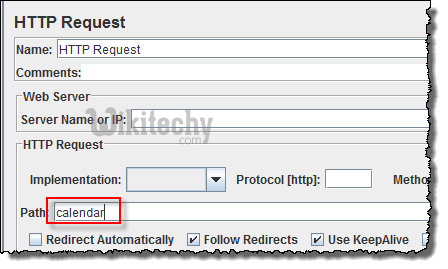
- Now return to step 4, open the HTTP Request pane, enter "calendar" to the pane. It makes JMeter create URL request www.google.com/calendar to the Google server. This is correct URL request so Google server will return OK (no error).
- Select View Result Tree, press Run button on Menu bar. You will see the OK response from Google server and the test will continue until all 100 threads are complete.